
Sign Up & Log In
How to get your free Light It Up access, log in to your portal, and watch the Replay and Presentation slides.
1. Sign up (it's free)
Already signed up for Light It Up before or on October 18? You don't need to do this again. Skip to Log in.
-
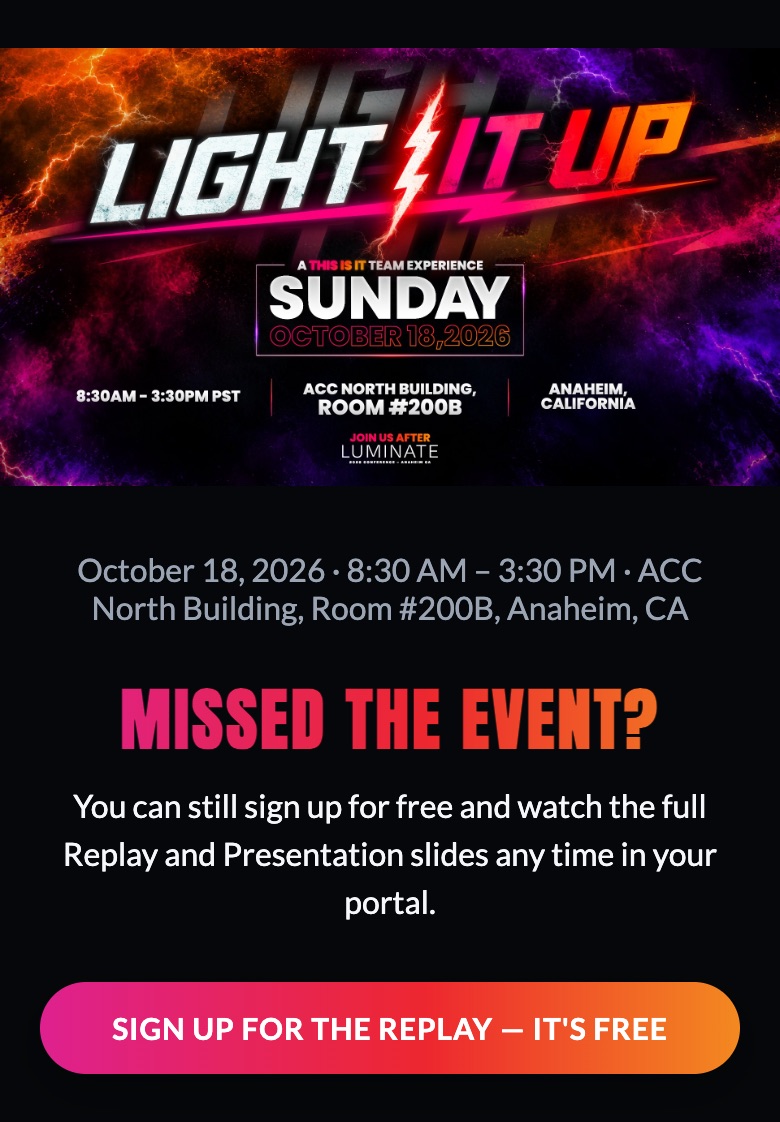
Go to the Light It Up page and tap Sign Up for the Replay — It's Free.
-
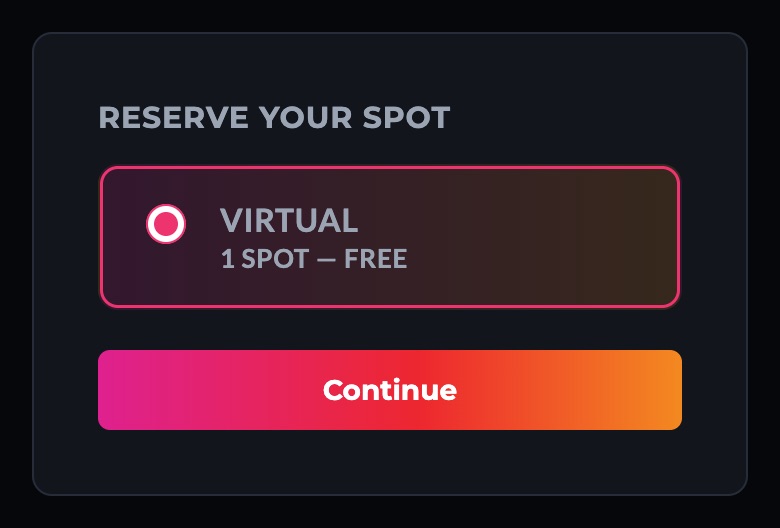
Choose Virtual, then tap Continue.
-
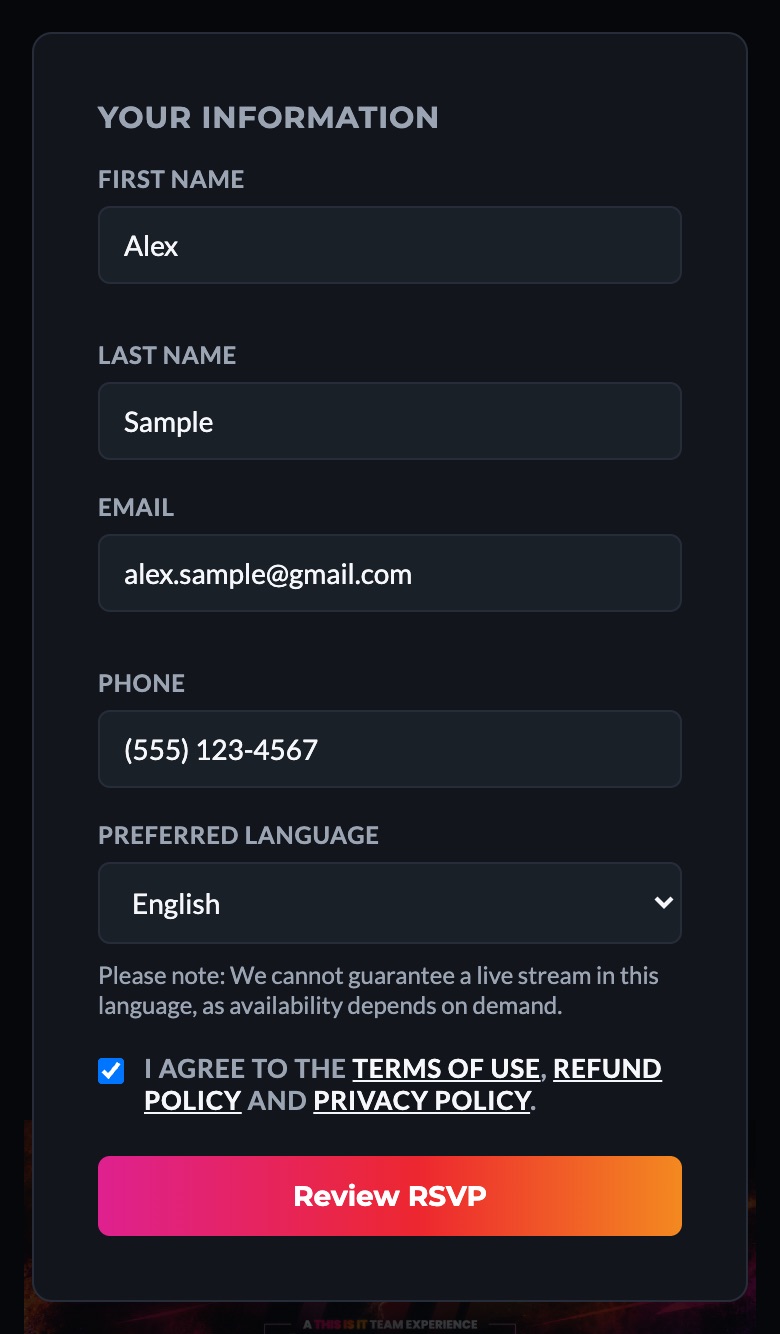
Fill in your details: first and last name, email, phone and preferred language.
Use an email you can open right now. It's where we send your code, your login and your confirmation.
-
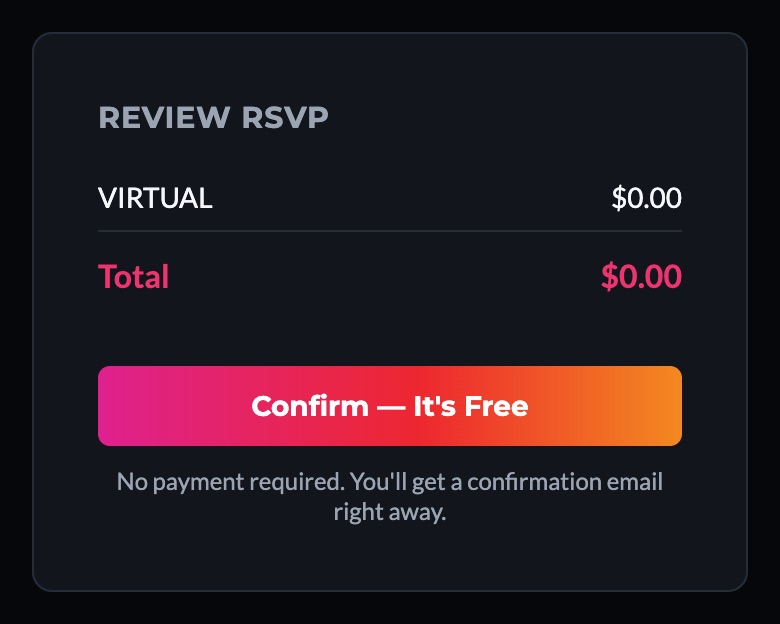
Check the box to agree to the terms, then tap Review RSVP and Confirm — It's Free.
-
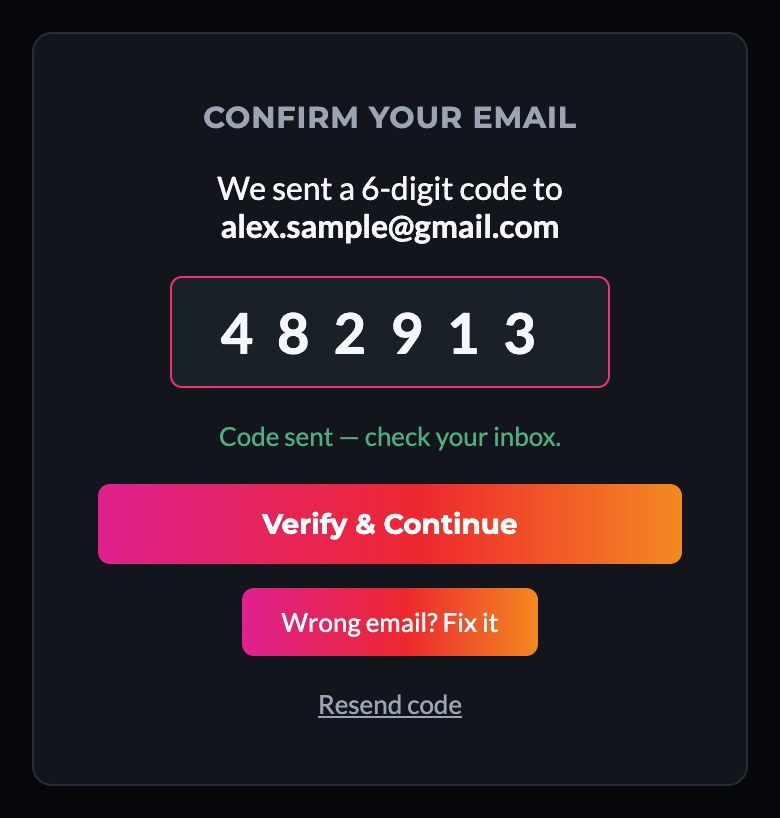
Enter the 6-digit code we email you, then tap Verify & Continue.
No code? Check your spam or promotions folder, or tap Resend code. Typed your email wrong? Tap Wrong email? Fix it.
-
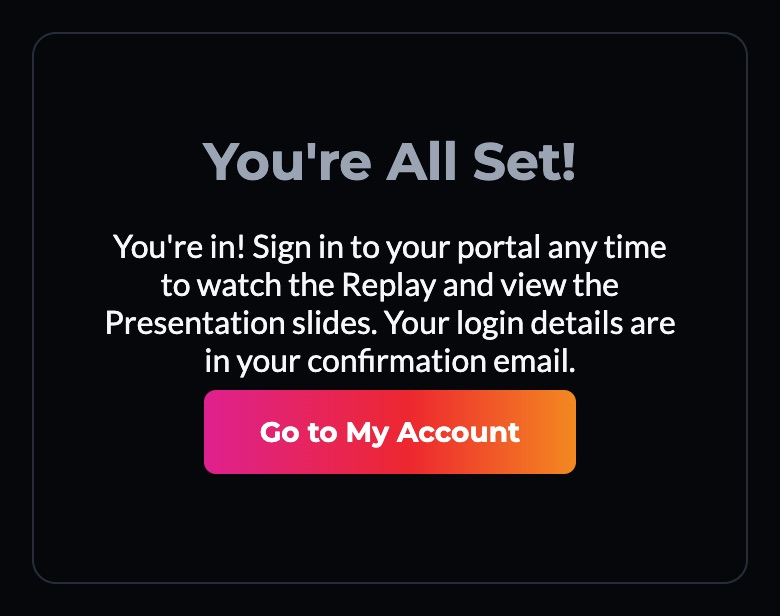
You're in! You'll see "You're All Set!" and get a confirmation email.
If you're new, the email includes your login email and a temporary password. Keep it handy for the next step.
2. Log in to your portal
Your portal is where your Replay, slides, photos and ticket live. There are two ways in. Use whichever is easier.
- Go to My Account: tap My Account at the top of the Light It Up page, or the button in your confirmation email.
-
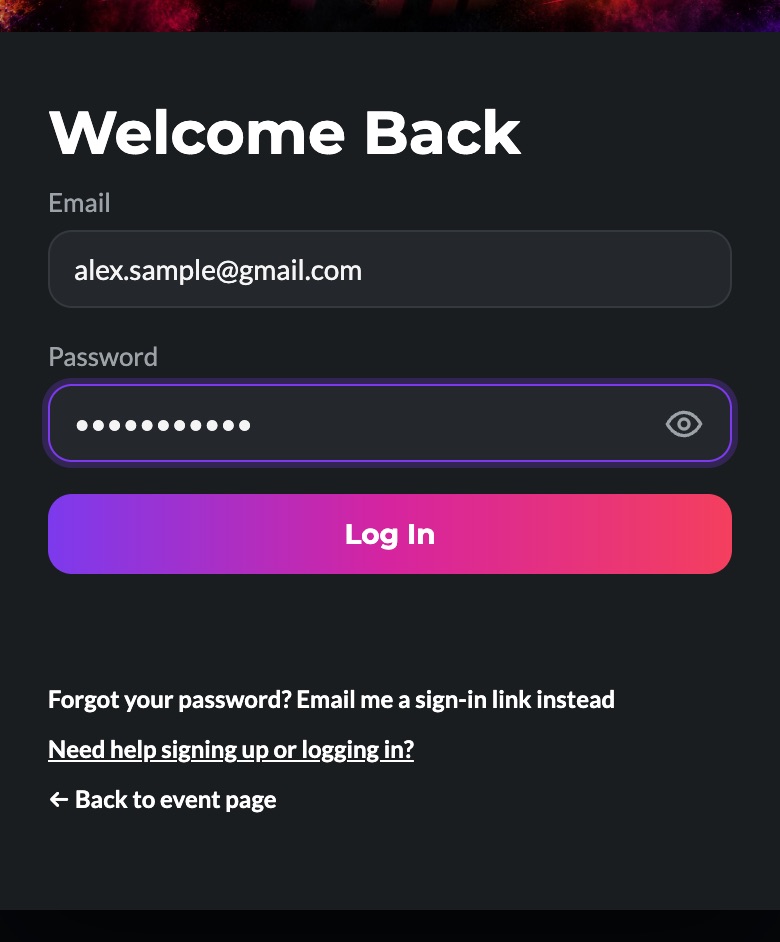
Option A: email + password. Enter the email you signed up with and the password from your confirmation email, then tap Log In.
The password is case-sensitive. Tap the eye icon to see what you typed.
-
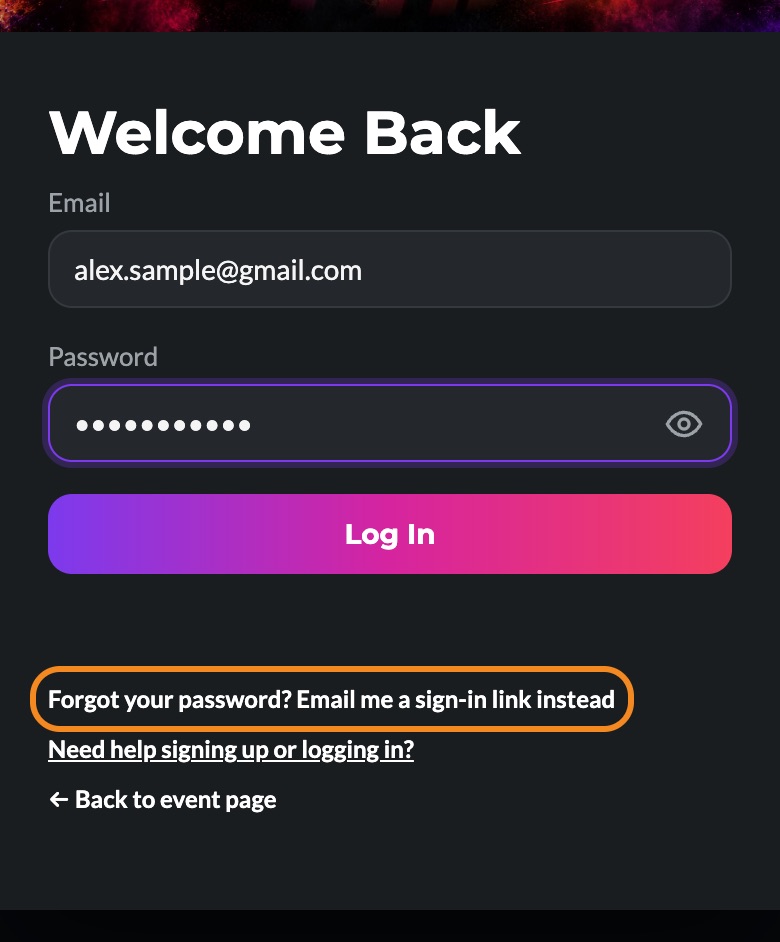
Option B: no password needed. Enter your email and tap "Forgot your password? Email me a sign-in link instead." Open the email we send and tap Sign In to My Account.
If your password doesn't work, we'll send you this link automatically.
- Want your own password? Once you're in, go to Account & Settings → Change Password.
3. Watch the Replay & slides
Every Light It Up sign-up, in person or virtual, includes the full Replay and the Presentation slides.
-
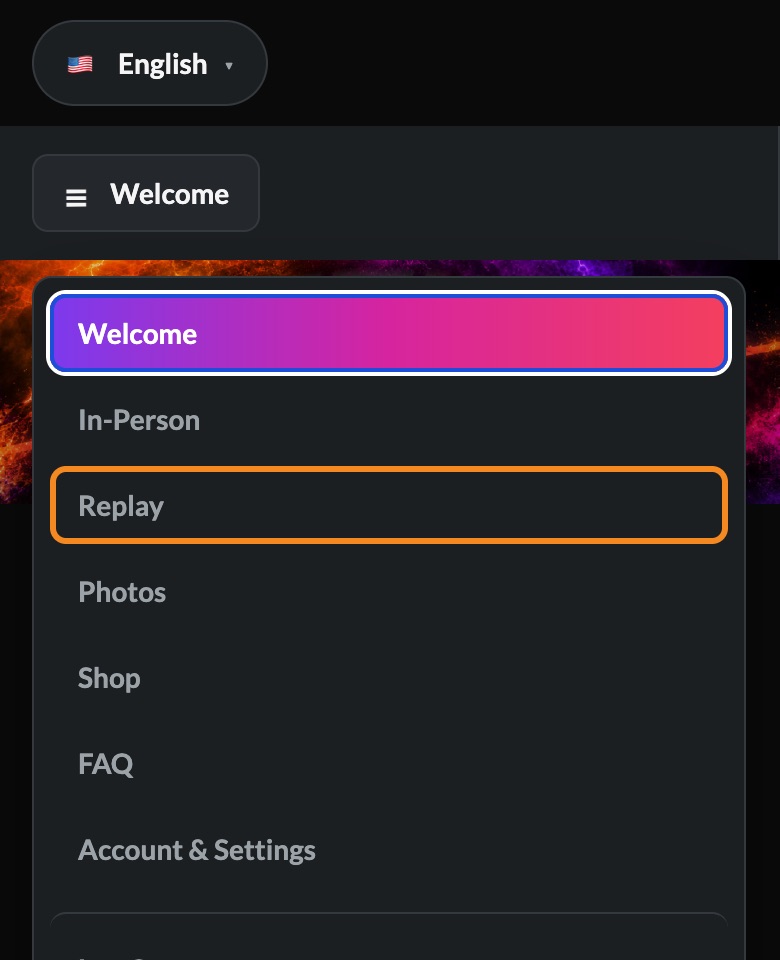
Open the Replay tab in the portal menu (on a phone, tap the menu button first).
-
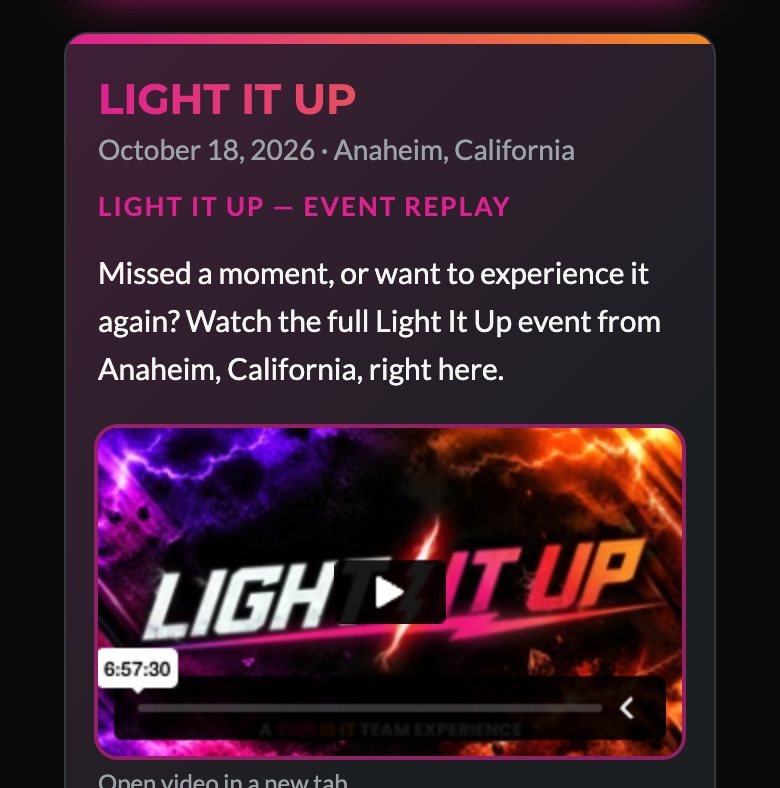
Press play on the Light It Up video. Tap the full-screen icon on the video for a bigger view.
-
Scroll down to Presentation Slides. Use the arrows (or swipe on your phone) to move through them, tap a small preview to jump to a slide, or tap ⛶ Full Screen.
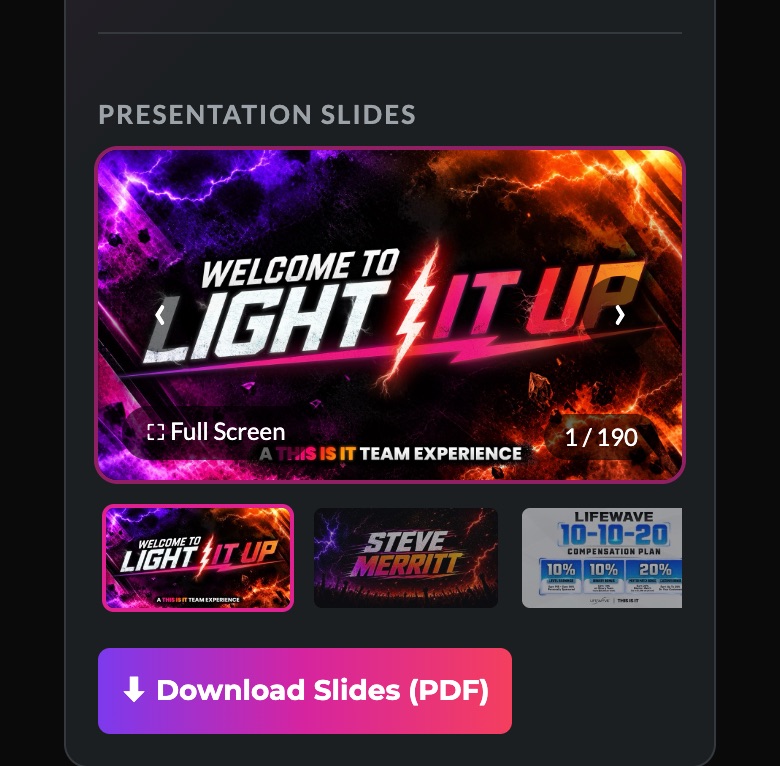
- Want a copy? Tap ⬇ Download Slides (PDF) under the slides.
- Event photos are in the Photos tab.
Having trouble?
I didn't get the 6-digit code or the confirmation email
Check your spam, junk and promotions folders, and search your inbox for "This Is It Team". Make sure the email you typed is spelled right (for example, gmail.com, not gmial.com). You can tap Resend code on the sign-up page.
My password doesn't work
No problem. On the login page, enter your email and tap "Forgot your password? Email me a sign-in link instead." The link logs you straight in, no password needed.
The sign-in link says it expired
Each link works once and expires after about an hour. Request a new one, then open only the newest email. Older links stop working once a new one is sent.
It says my email isn't registered
Try the email you used when you signed up. If you've never signed up, sign up here. It's free.
I'm logged in but don't see the Replay
Make sure you're logged in with the same email you signed up for Light It Up with. A different email creates a separate account without your Light It Up access. Then open the Replay tab and pick Light It Up from the event list.
Can I see the portal in my language?
Yes. Use the language menu at the top of the portal. It's available in English, Español, Português, Deutsch, Français, 中文, Italiano, Русский, 한국어, Nederlands and Magyar.
Still stuck? Email us at info@thisisitteam.com and we'll help you get in.